.svg?fit=max&auto=format&n=NcRYOCfKJkO5rLTb&q=85&s=fd0faab3fa561bdd2e9b10fd042c5bf0)
Key Features
- User List and Search:
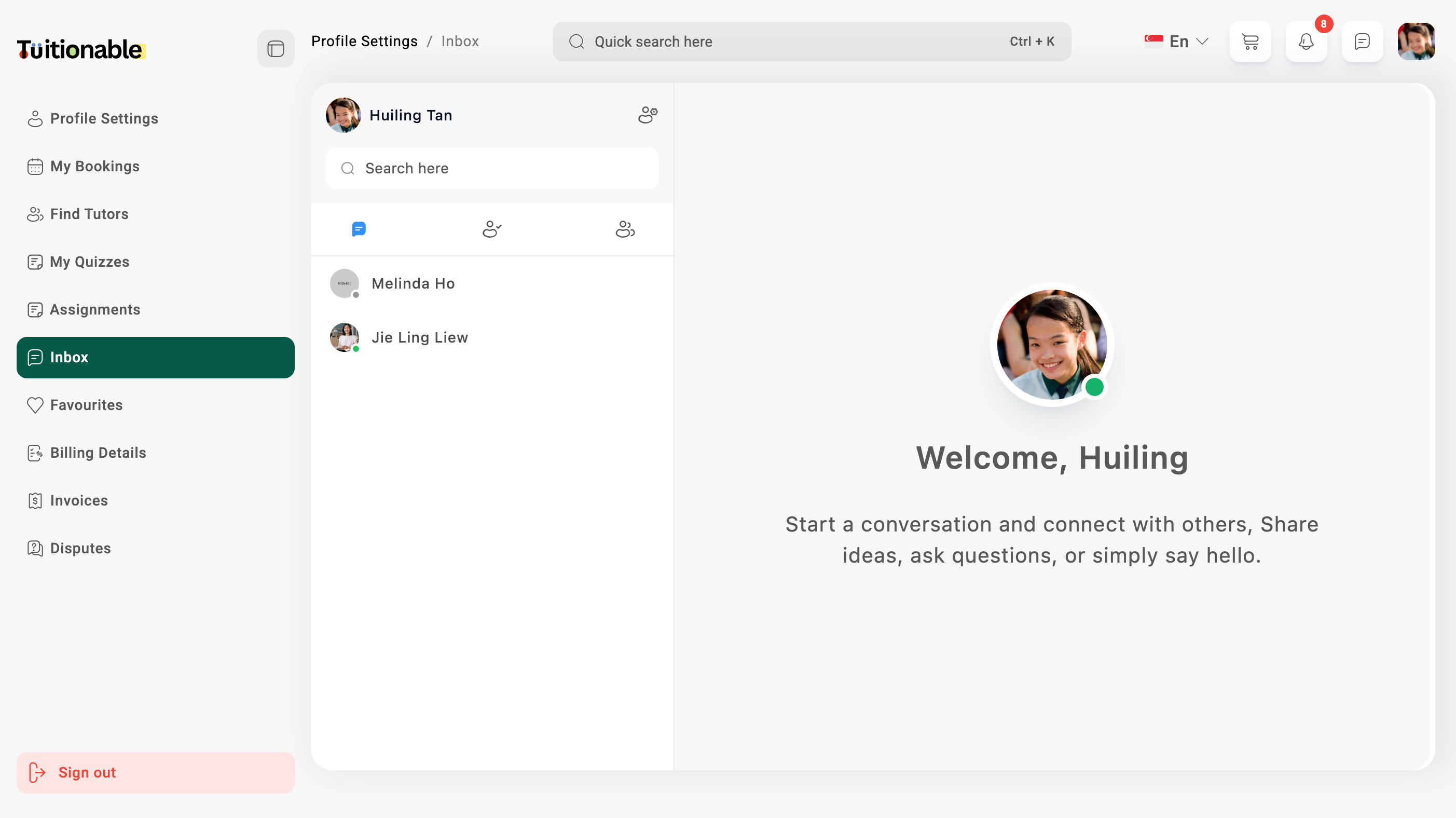
- On the left panel, you can view a list of all active conversations with tutors or other users.
- Use the Search Bar to quickly find a tutor or student and start a new conversation.
- Real-time Chat:
- Engage in interactive conversations with tutors using:
- One-to-One Messaging: Private and direct messaging with tutors.
- File Sharing: Upload and share files, including audio, video, documents, and images.
- Voice Notes: Send recorded voice messages to communicate effectively without typing.
- Instant Updates: Messages appear instantly in the chat window, ensuring real-time communication.
- Engage in interactive conversations with tutors using:
- Send Friend Requests:
- Before initiating a chat, students can send friend requests to tutors or other users for approval.
- Message Notifications:
- New message notifications and friend requests appear with icons and alerts, ensuring students do not miss important messages.
- Welcome Screen:
- When no conversation is selected, a friendly welcome message is displayed in the center of the chat area, encouraging students to:
- Start a new conversation.
- Share ideas or questions with tutors.
- Collaborate and engage with others.
- When no conversation is selected, a friendly welcome message is displayed in the center of the chat area, encouraging students to:
Steps to Use the Inbox Area
- Go to the Inbox section in your dashboard.
- Select an active conversation from the user list or search for a tutor to start a new chat.
- Type your message and click Send.
- Share files, voice notes, or images directly within the conversation.
- Check notifications for new messages or pending friend requests.
Visual Overview
Below is an example of the Inbox Area showcasing active chats and a friendly welcome screen: