.svg?fit=max&auto=format&n=NcRYOCfKJkO5rLTb&q=85&s=fd0faab3fa561bdd2e9b10fd042c5bf0)
Adding Sessions in Bulk
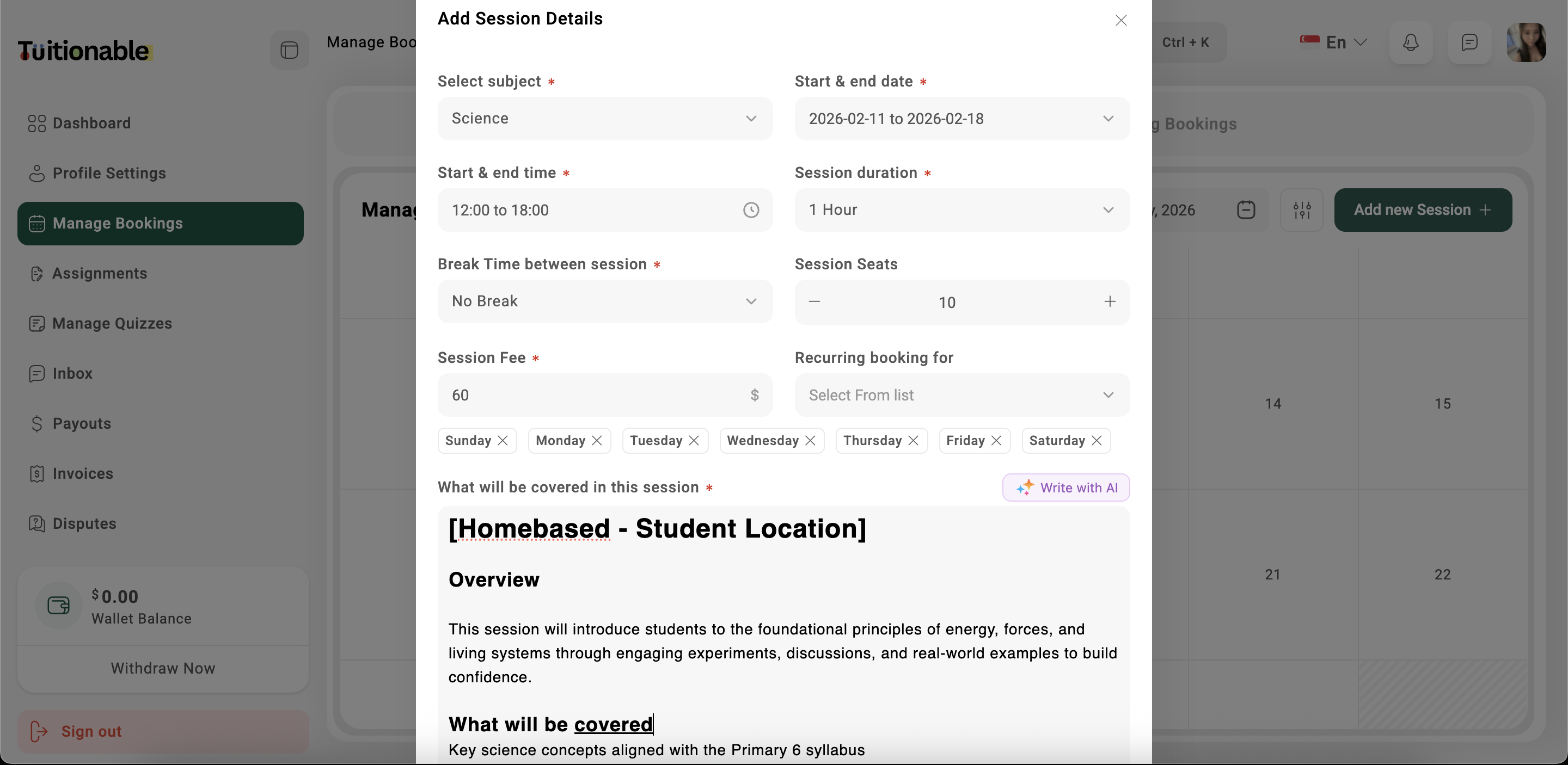
- Click on the Add New Session button located at the top-right corner of the calendar.
- Fill out the Add Session form:
- Subject: Select the subject for the session.
- Start and End Date: Choose the start and end date for the session.
- Start and End Time: Set the start and end time for the session.
- Session Time (Duration): Enter the total duration of each session.
- Break Between Sessions: Specify the break time between consecutive sessions.
- Seats: Choose either 1 to 1 (individual sessions) or multiple (group sessions).
- Certificate Template: Tutor can award certificates to students after completing sessions.
- Recurring for Days: Select the days of the week when the session should recur.
- Session Fee: Enter the fee for the session.
- Special Instructions: Provide any special instructions or notes for the session (optional).
- Click Save & Update to add the sessions to the calendar.
Editing Sessions
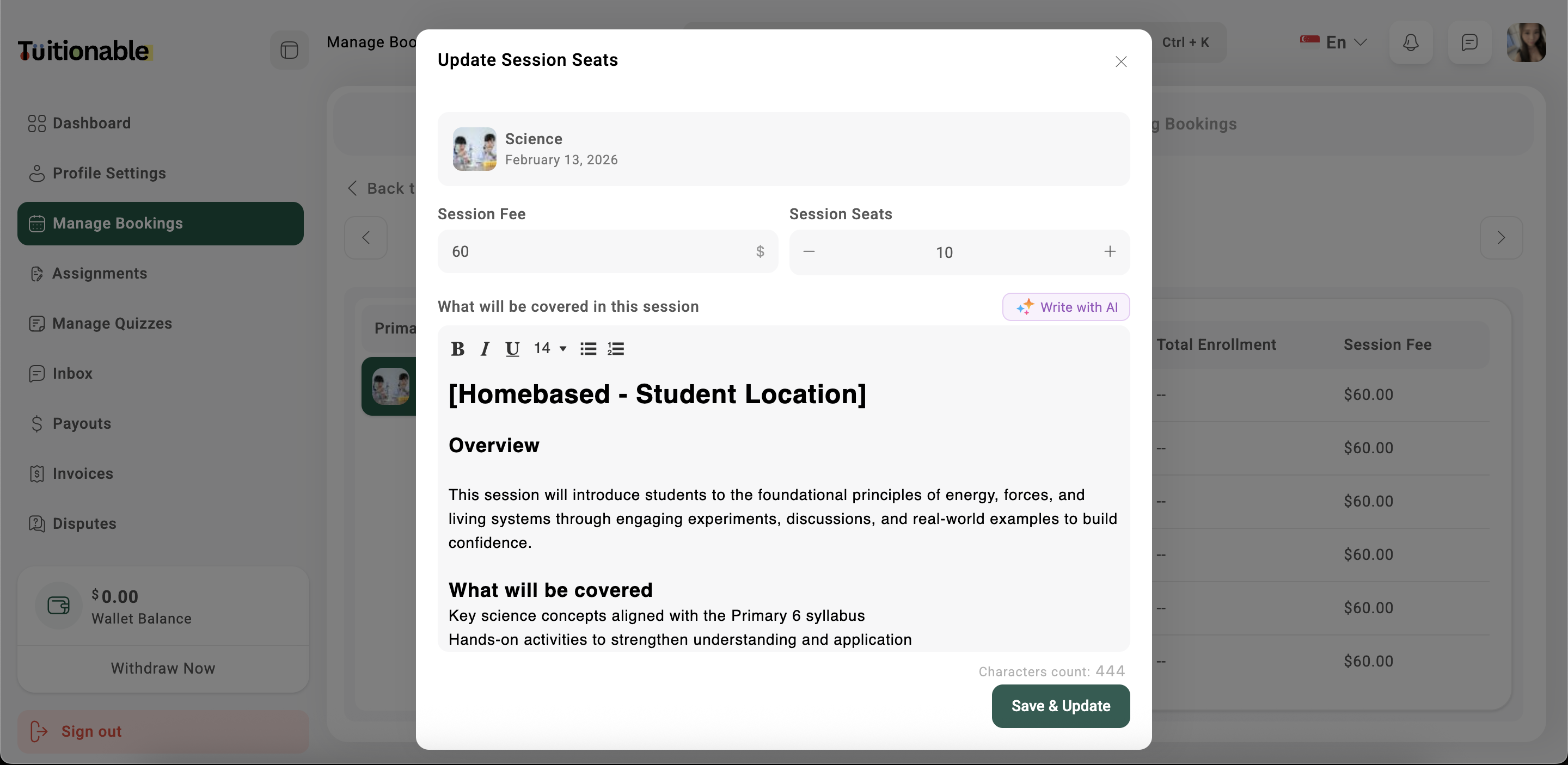
- To edit an existing session, click on the date of the session in the calendar.
- Modify the session details in the form that appears and click Save & Update.